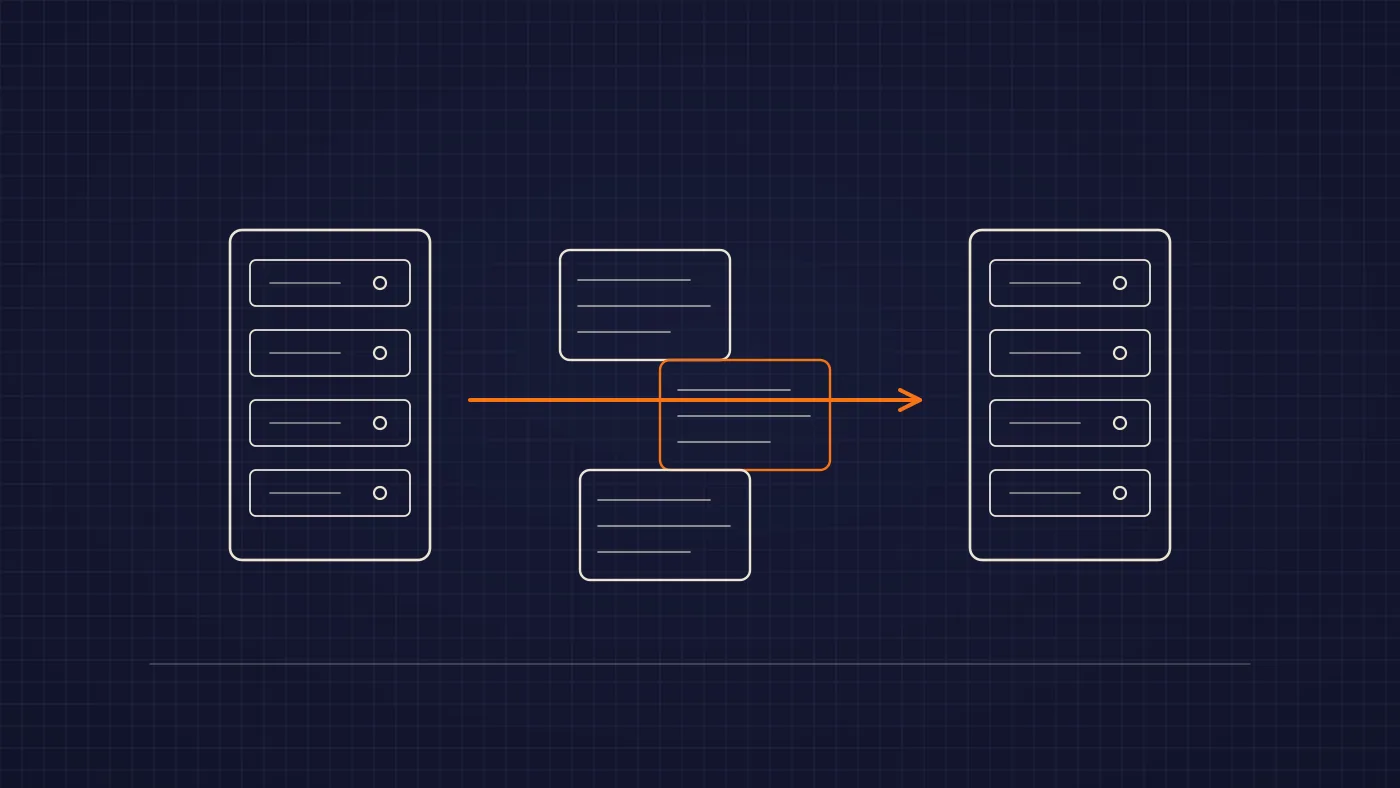
Switching practice management software is one of the biggest projects a dental office takes on. Your schedule, ledgers, insurance, charts, notes and X-rays all live in it. Done well, the office loses a slow week. Done badly, you're fixing balances and hunting for X-rays for months.
This guide is the plan we use with practices, whether you're leaving Dentrix, Eaglesoft, Denticon, Cloud 9 or something else. Most of the examples use Open Dental, because it publishes its conversion process in detail, but the same steps apply to any switch. If you know your current system, jump to the specific guide:
- Dentrix to Open Dental (coming soon)
- Eaglesoft to Open Dental
- Denticon to Open Dental (coming soon)
- Cloud 9 to Open Dental
1. Know what actually moves
The biggest surprise for most offices is that not everything converts. Each new vendor publishes what it can bring over from each old system, and it's different every time.
Open Dental's conversion guides are a good example. Coming from Dentrix, patients, insurance plans, payments, adjustments, clinical notes, perio, appointments and treatment plans convert, but X-rays, secondary claims, preauthorizations, forms and custom recall intervals don't. Open Dental: Dentrix conversion guide Their pre-conversion checklist adds that claims and assigned benefits generally don't convert, apart from primary claims from Dentrix. Open Dental: Pre-conversion checklist
Before you sign anything, get the vendor's list for your current system and version, and decide how you'll handle each item that won't move.
2. Plan for X-rays and documents separately
Images are usually a separate step, and sometimes a separate fee.
- If your imaging software (Dexis, Carestream and similar) is separate from your practice software, you can often keep using it and connect it to the new system with a bridge. Open Dental notes that images from several of these programs line up close to 100% only if they were used in bridged mode. Open Dental: Image conversions
- If your X-rays live inside the old practice software, they may need a paid image conversion, and they may not look exactly the same afterward. Open Dental says Eaglesoft's X-rays, for example, can't be bridged and have to be converted. Open Dental: Image conversions
Decide this early. Imaging is where most go-live surprises come from.
3. Run a test conversion and check it properly
Open Dental offers a free test conversion: a specialist pulls a copy of your data, converts it, and gives your team a test database to review. For a system they already support, the test itself takes a few hours. Open Dental: Test conversion
Don't let anyone just say it "looks right." Open Dental's checklist asks offices to: Pre-conversion checklist
- Pick one staff member to lead the conversion.
- Compare at least 10 patients with balances and insurance, including some with credit balances, against the old system.
- Write down your total accounts receivable and compare it with the test.
- Test the imaging bridge.
Give each reviewer a specific job: front desk checks appointments and recalls, billing checks ledgers and insurance, clinical checks notes, perio and treatment plans.
4. Save what won't convert
Before the final conversion, run and save the reports you'll need from the old system: aging, outstanding claims, production, treatment plans and anything your accountant uses. Open Dental's checklist says to run historical reports and keep printed or saved copies. Pre-conversion checklist
Also decide how long you'll keep access to the old system. Texas requires dental records to be kept at least five years after the last treatment, and longer for minors. 22 Tex. Admin. Code § 108.8 If the old data won't all come across, you need a way to look it up later.
5. Get the IT side ready before go-live
Software vendors convert data. They don't usually set up your server, network, workstations, scanners or backups. This is the part we handle for practices, and our Open Dental conversion IT checklist covers it in detail. In short:
- Confirm the server and every workstation meet the new software's requirements.
- Install the new software and imaging bridges on every computer, and test each operatory's sensor, camera and pano.
- Set up printers, card terminals, scanners and signature pads.
- Set up backups for the new database and test a restore. Open Dental's checklist reminds offices that Open Dental doesn't back up your database for you. Pre-conversion checklist
- Plan remote access for owners or billing staff.
6. Pick the right go-live day
- Stop entering data in the old system at the agreed cutoff. Open Dental asks practices to book the final conversion one to two weeks ahead and not enter new data in the old software after the cutoff. Open Dental: Final conversion
- Time it around a natural break, like the end of a pay period or after month-end close.
- Book a lighter schedule for the first one to two weeks. Open Dental's checklist recommends it.
- Tell your clearinghouse, payment processor, reminder service and other connected vendors about the switch.
7. Handle the contract and the old vendor
- Read your old contract's termination and data sections. Cloud vendors often delete your data a set number of days after you cancel, so get your copy first.
- When a vendor stops handling your patient data, HIPAA requires it to return or destroy that data where feasible. 45 CFR 164.504(e)
- Make sure you have a business associate agreement with the new vendor and anyone hosting your data.
What a switch to Open Dental costs (as listed in November 2026)
Open Dental lists a free test conversion and a final data conversion of typically $1,450 per database, plus $400 for each extra clinic, with separate fees for converting scanned documents and X-rays. Open Dental: Conversions Its US support fee is listed at $199 a month per location for the first 12 months, then $149, with no separate license fee. Open Dental: Fees Check the current pages before budgeting, because vendors change these.
Budget for the IT side too: workstation updates, imaging bridge setup, backups and go-live support.
FAQ
How long does it take to switch dental software?
The data conversion itself takes hours, but the whole project usually takes several weeks from test conversion to go-live, plus a slower week or two afterward while staff settle in.
Will our X-rays come over?
It depends where they're stored. Separate imaging software can often just be bridged to the new system. X-rays stored inside the old practice software usually need a paid image conversion.
Do we lose our insurance claims history?
Often, outstanding claims don't convert. Run an outstanding claims report before the cutoff and work those claims from the report or the old system.
Can we keep the old software?
Usually in read-only form for lookups. Check your license and contract, and plan for how long you'll keep it.
Sources
Related guides
Switching From Cloud 9 to Open Dental: A Guide for Ortho Practices
Learn More